
Getting started
Welcome to Salah Times
Salah Times gives you a clear daily prayer timetable, whether you prefer published times from a masjid or locally calculated beginning times using your location, with your permission. This guide shows the main tasks on desktop and mobile, including choosing a timetable, finding a masjid, personalising the display, using the Qiblah Compass, recording Qaza Salaah, and opening the Quran reader.
When you install or save the website to your phone's home screen, its app name is The Tested.
Prayer cards use clean, pattern-free backgrounds. The geometric design appears only inside the moving fade on the Next Prayer card and highlighted Current Prayer card, using the same sharp pattern treatment as the home page. The page background and both card effects are phase-locked to one gentle cycle on desktop, mobile and the installed app. Devices using reduced-motion settings see the same layout without animation.
Prayer-time source
Switch between Masjid Times and Calculated Times
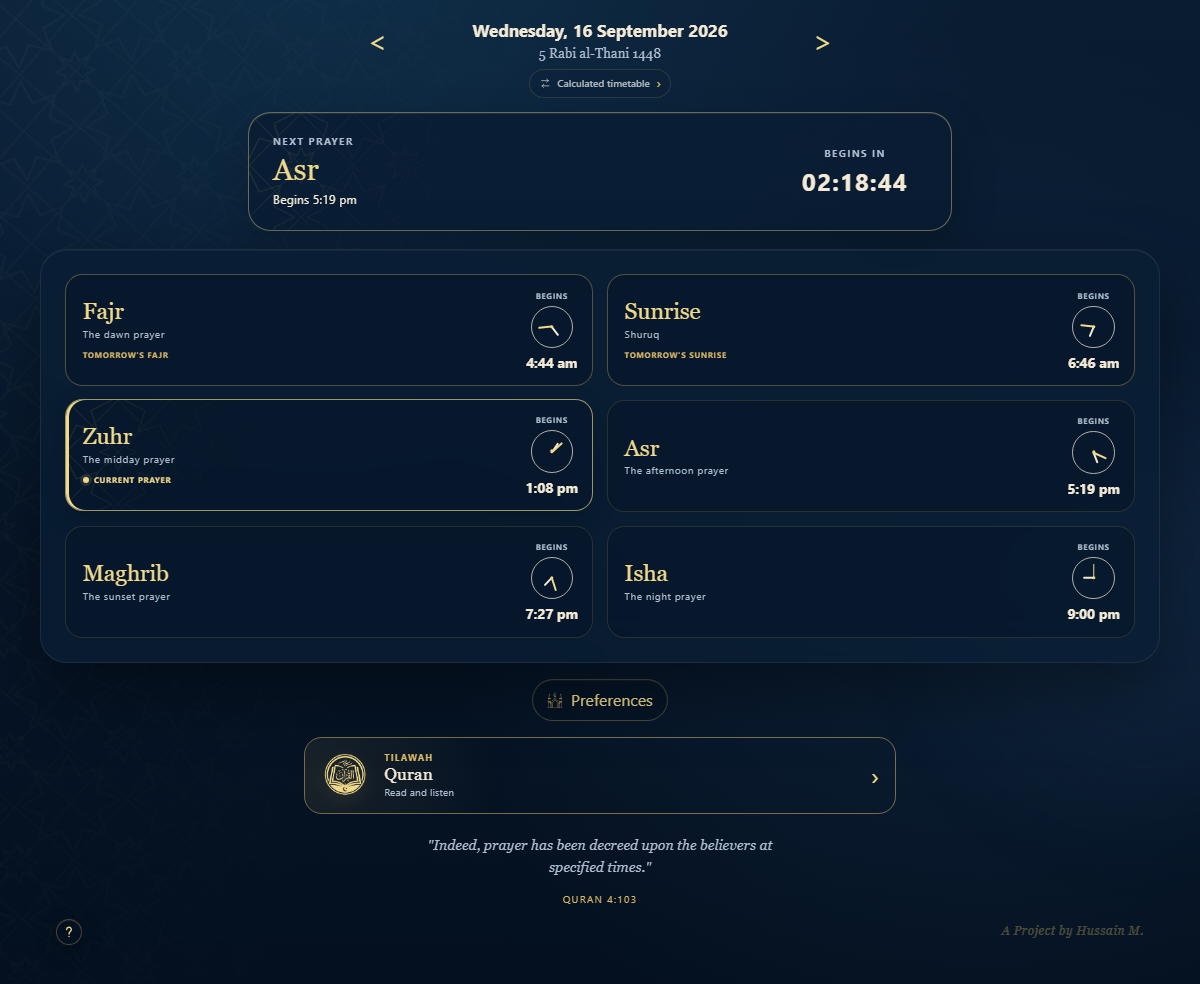
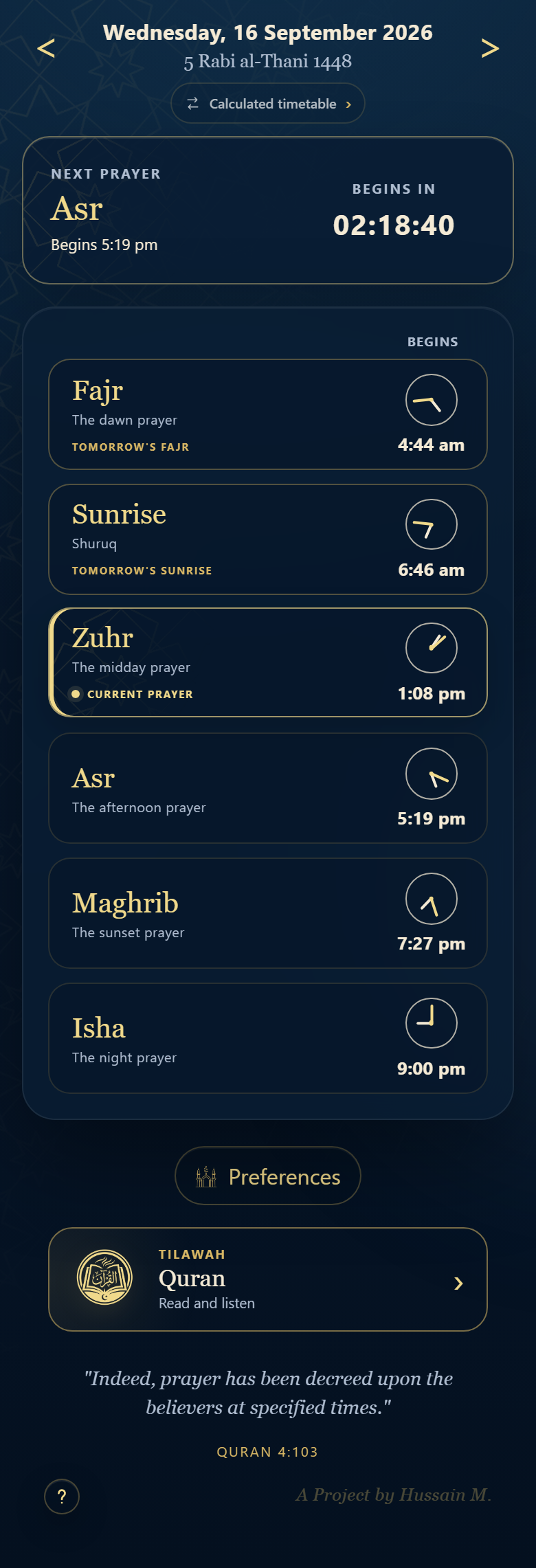
Use the timetable-source pill directly beneath the date whenever you want to change where your prayer times come from. It shows the active source and is the quickest way to move between the published timetable of your chosen masjid and calculated beginning times for your saved location.
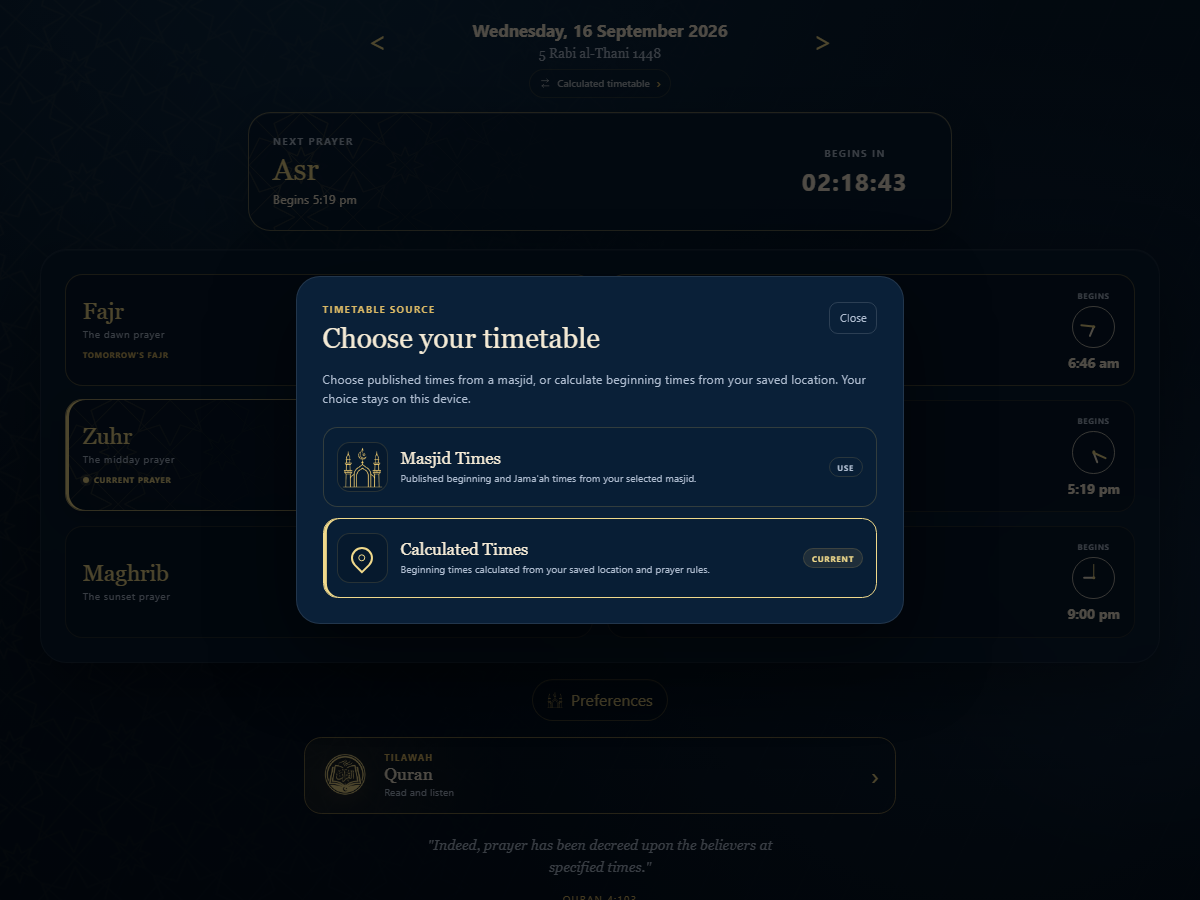
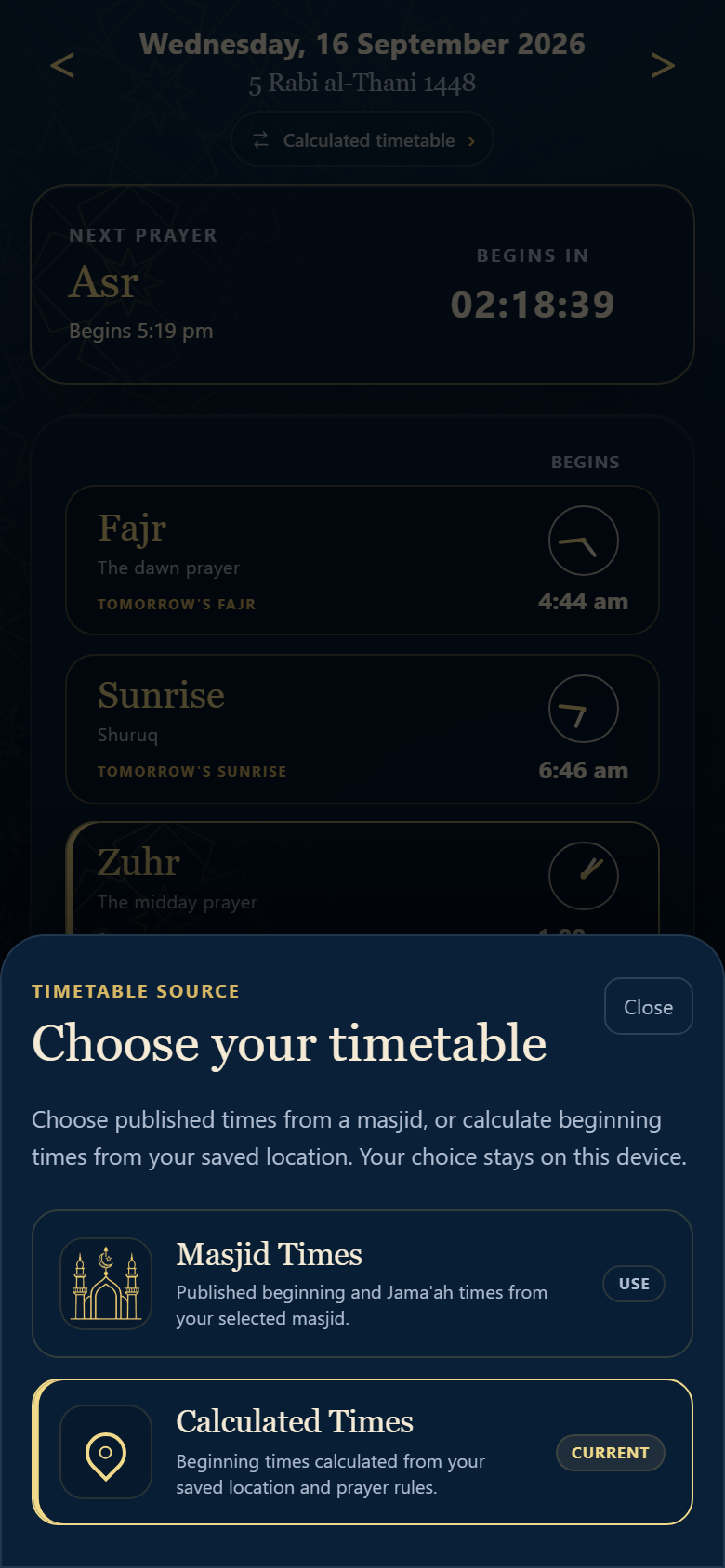
Open the timetable-source chooser
Tap or click the small timetable-source pill. The chooser displays both options side by side. Masjid Times is the published beginning and Jama'ah timetable for your selected masjid. Calculated Times creates beginning times from the saved location and your selected prayer rules. The option marked Current is the one now shown on your timetable.
Change from your masjid to calculated location times
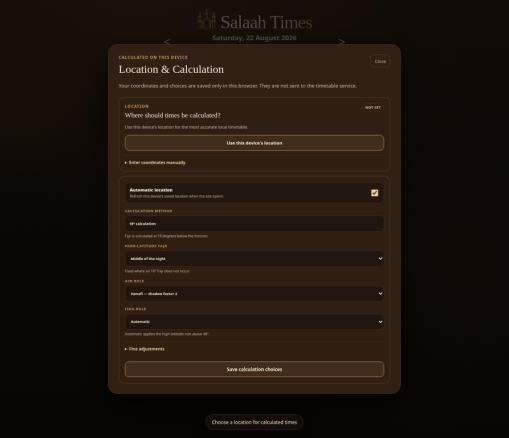
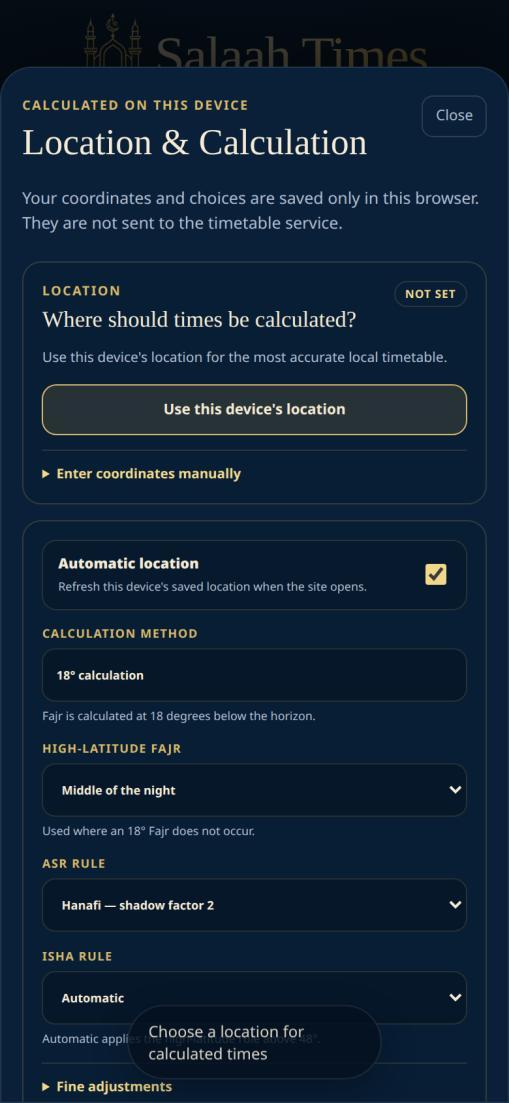
Choose Calculated Times in the chooser. If you have not saved a location on this device, Salah Times opens Location & Calculation straight away. Select Use this device's location and allow location access when prompted, or open Enter coordinates manually to provide a location name, time zone, latitude, and longitude. Review the high-latitude Fajr, Asr, Isha, and fine-adjustment choices, then save the calculation choices.
Switch back to your chosen masjid
Open the timetable-source chooser again and select Masjid Times. Your previously selected masjid becomes the active timetable source again; no location settings need to be deleted. To choose a different masjid, open Preferences, use Search masjids, and select the desired result. Your chosen source and preferences stay on the device you are using.
Personal settings
Use the Preferences settings hub
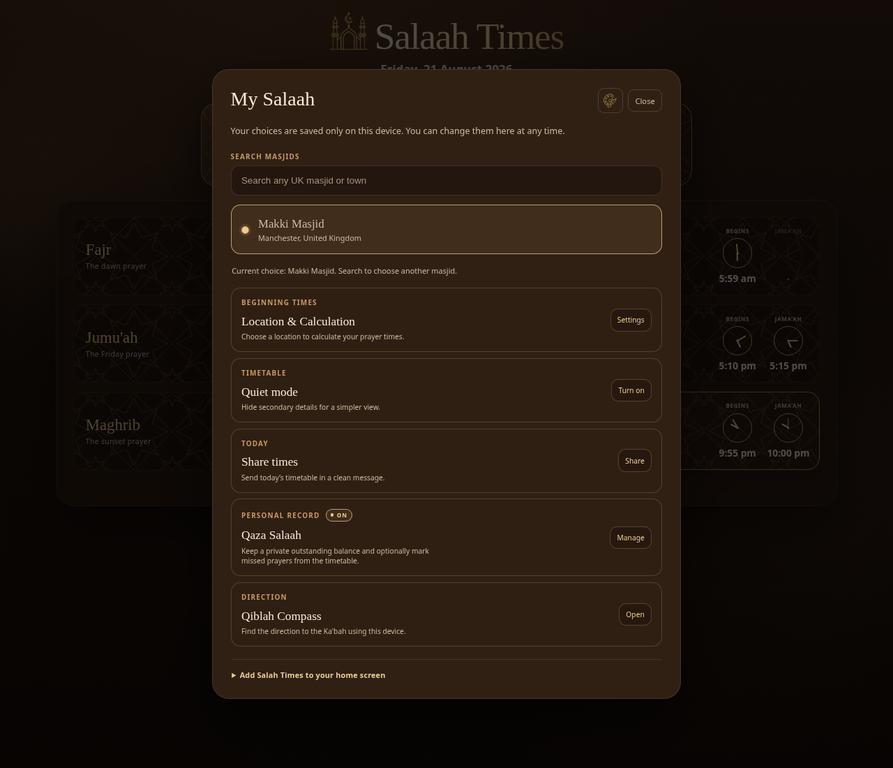
Select Preferences at the bottom of the timetable to open the settings hub. It groups the most common changes in one place: masjid search, appearance, calculated-times settings, Quiet mode, sharing, Qaza Salaah, Qiblah Compass, and installation instructions.
Change appearance and simplify the view
Select the palette button at the top of Preferences to choose from six colour themes. A selected theme is applied immediately. Use Quiet mode when you want a more minimal timetable; it hides secondary information. Return to Preferences and select Turn off whenever you want the fuller view back.
Share today's timetable
Choose Share in the Share times section. On desktop this copies the day's timetable to the clipboard so it can be pasted into a message or note. On a phone, the device may offer its usual sharing choices. Always check the destination and pasted text before sending it.
Add Salah Times to your home screen
On Android, open the browser menu and select Add to Home screen or Install app. On iPhone, use the browser's Share button and select Add to Home Screen.
Direction of prayer
Qiblah Compass
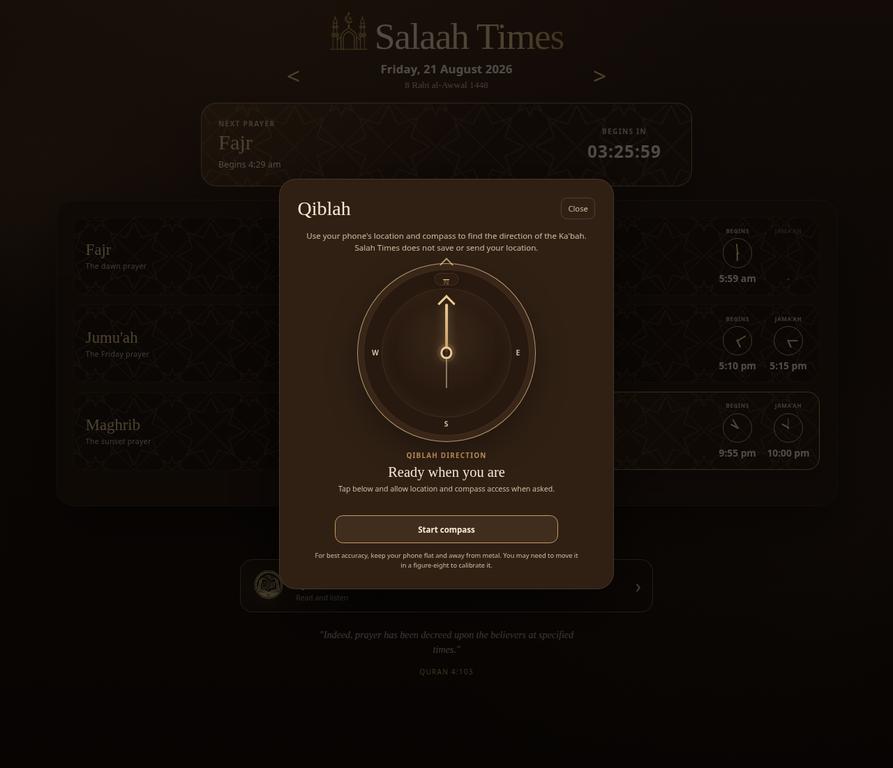
Open Preferences and select Open beside Qiblah Compass. The first screen explains that the feature uses your phone's location and compass to find the direction of the Ka'bah. Select Start compass, then grant location and compass access when your device asks. Hold the phone flat, keep it away from metal objects, and move it in a figure-eight if your device requests calibration. For the most accurate results, calibrate the phone before activating the compass.
Personal records
Track Qaza Salaah
Open Preferences, then choose Turn on or Manage beside Qaza Salaah. Start by selecting your school of thought and activating the tracker. The outstanding-balance area records the number of rak'ahs still outstanding for each prayer. Use Completed one after making up a prayer, or use the manual-entry section to record missed prayers for a chosen date.
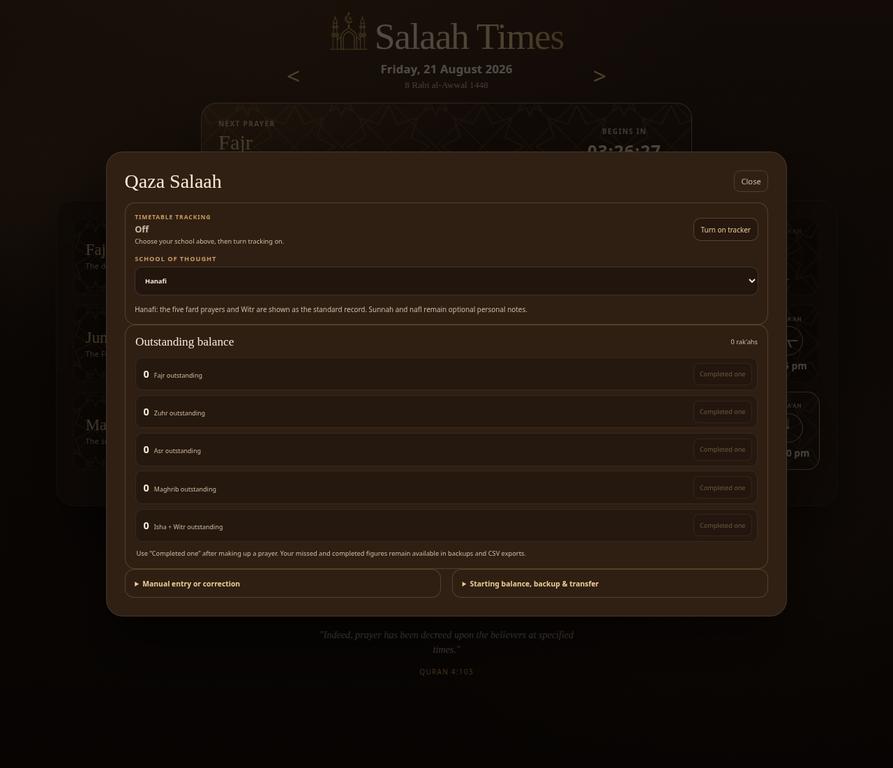
The Qaza area also provides an optional starting balance and separate personal notes for Sunnah and Nafl rak'ahs. Use Download backup for a JSON backup or Download CSV sheet for a spreadsheet-friendly copy. Keep these files in a secure place; they contain your private personal record. If you restore a backup, make sure it is one you created and recognise.
Tilawah
Read and listen to the Quran
Select the Quran card from the timetable, located toward the bottom. If you have listened before, it opens the Quran library with your current surah centred and subtly outlined; playback stays paused until you choose to continue. The Quran library contains all 114 surahs. Search accepts the surah number, Arabic name, common spelling variations, and names without dashes or the “Al-” prefix; the empty search field rotates English examples such as “Try Ya-Sin” every three seconds. Use the filters to view recently played surahs, saved ayahs, the 99 Names of Allah, or the surahs in a selected Juz. A selected filter stays selected until you choose another one, and the Back button returns you to the same filtered view and surah position. Saved ayahs stay out of the way until you choose the Saved pill, then the arrow can collapse or expand their details. Recent keeps the eight most recently listened-to surahs. Each recent card shows the ayah where you stopped and a small progress line, and returns you to that ayah and playback point. Use the Default reciter list to select your preferred voice before opening a surah; Ahmed Al-Nafis, Yasser ad-Dussary, Mishary Rashid Alafasy, Khalid Al-Jalil, Abdur-Rahman as-Sudais, Salah Bukhatir, Nasser Al-Qatami, and Maher al-Muaiqly are available with ayah-synchronised playback. Each card provides the English and Arabic name, ayah count, and Makki or Madani classification.
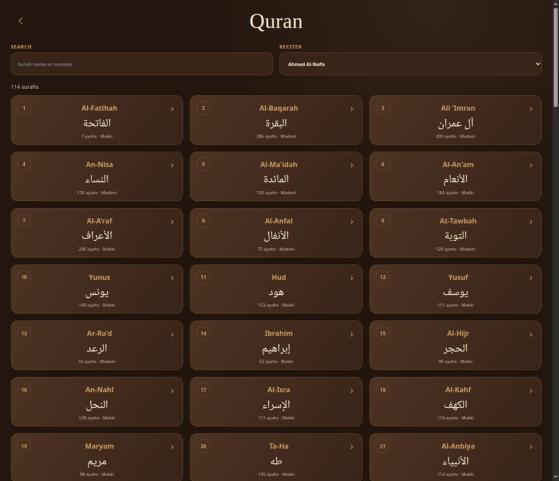
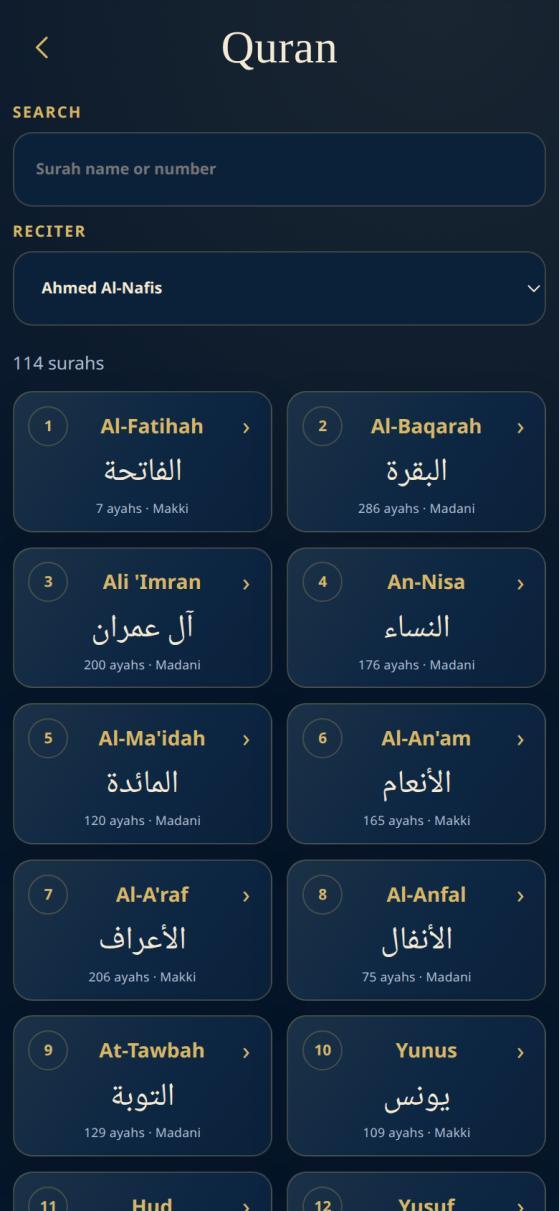
A faint geometric pattern moves across the Quran background at a gentle pace. It follows the active theme and remains behind the library cards and reading surface. If your device uses reduced-motion settings, the movement is paused automatically.
Use the player
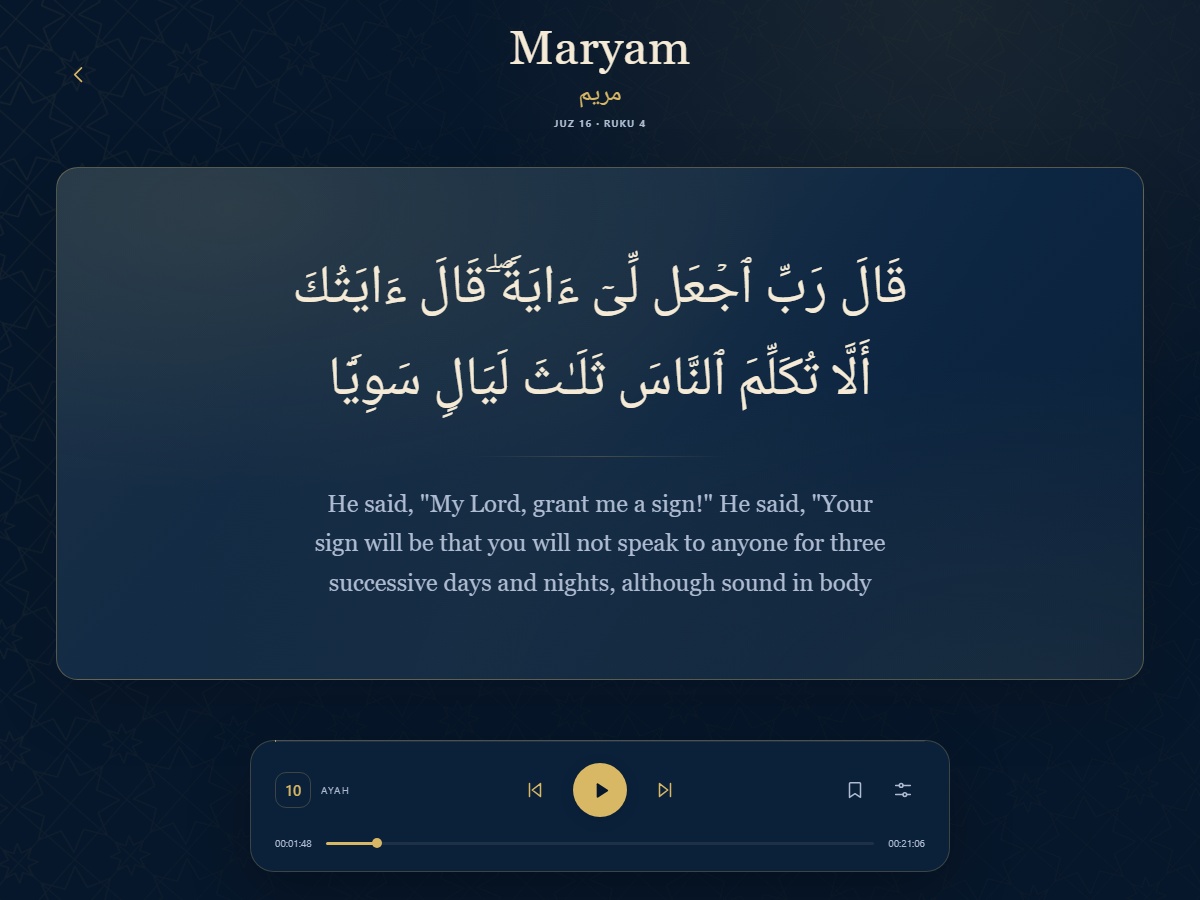
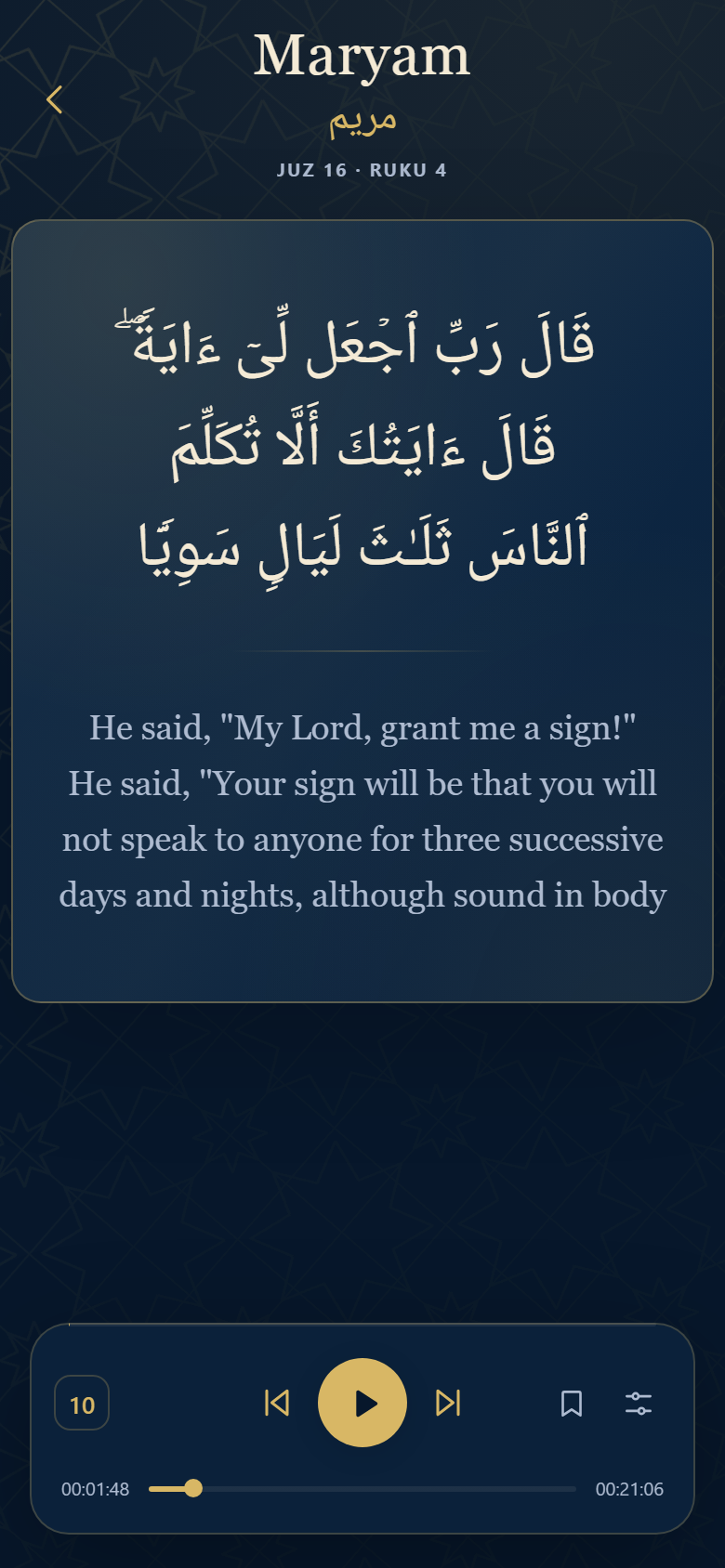
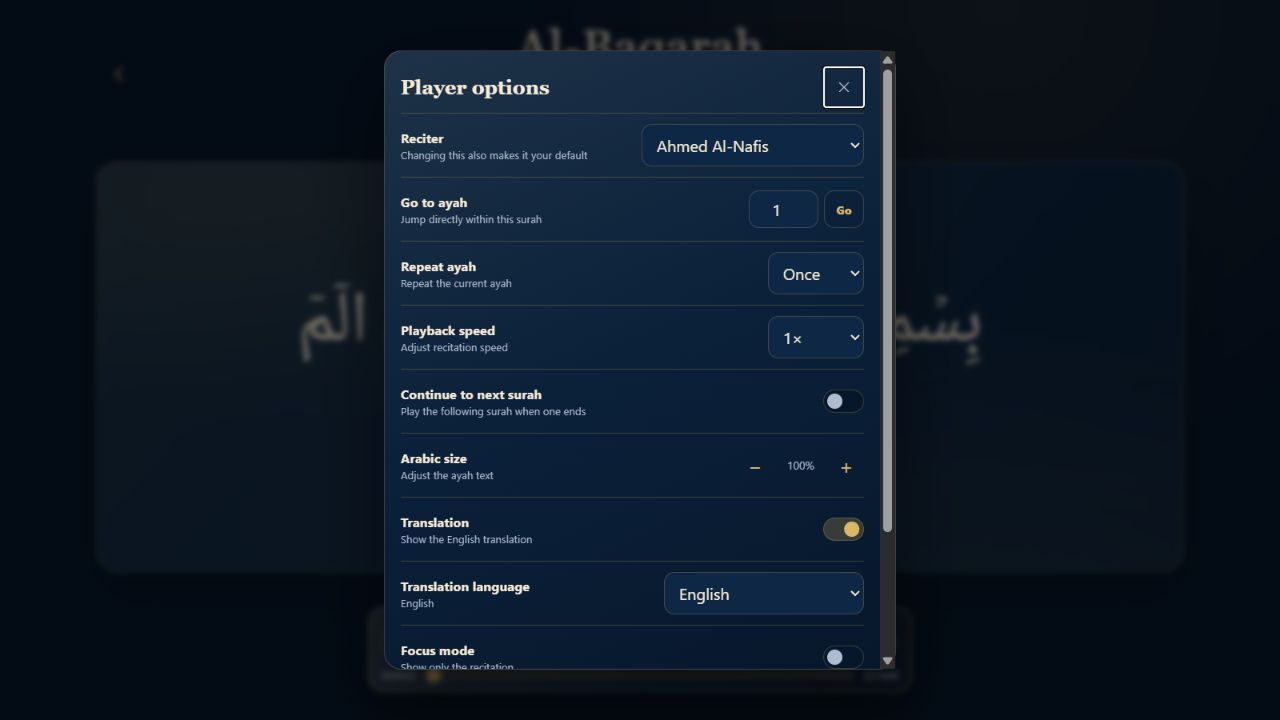
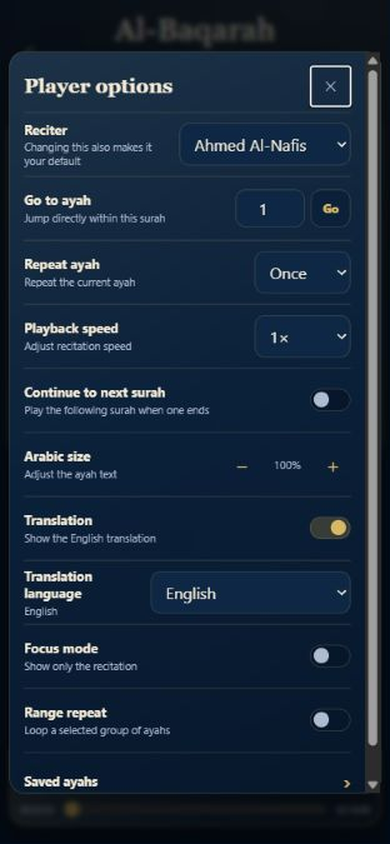
Select a surah card to open the player at the first ayah. The quiet line beneath the surah name shows the current Juz and Ruku. The controls below the ayah let you go to the previous or next ayah, play or pause recitation, save a bookmark, and move through playback with the timeline. Select the options button to open a centred settings window where you can change reciter, jump directly to an ayah, open saved ayahs, adjust repeat count, playback speed, Arabic text size, translation visibility and language, focus mode, range repeat, or automatically continue into the next surah. The compact cog in the top-right of the Quran library opens a matching centred settings window for the default reciter, auto-continue, translation and Arabic-size choices. These choices are remembered on the device.
The gold play button stays centred between previous and next ayah. The small badge on the left shows your current ayah; save and options sit on the right. The thin line along the top edge tracks the current ayah, while the lower slider and times show your position in the full surah.
Sync Quran progress. In Quran settings, choose Create code to create a private recovery code, then enter that code in Connect device on another device. The device restores your saved ayahs, recent surahs, playback position, reciter, and player preferences before it can send changes back. A themed confirmation, displayed code, and the Disconnect and Reset code actions show that it is connected. The payload is encrypted before it is stored. Disconnect removes sync from the current device only; Reset code revokes the old code and creates a new one for every device you wish to keep connected.
Al-Asma al-Husna
Explore the 99 Names of Allah
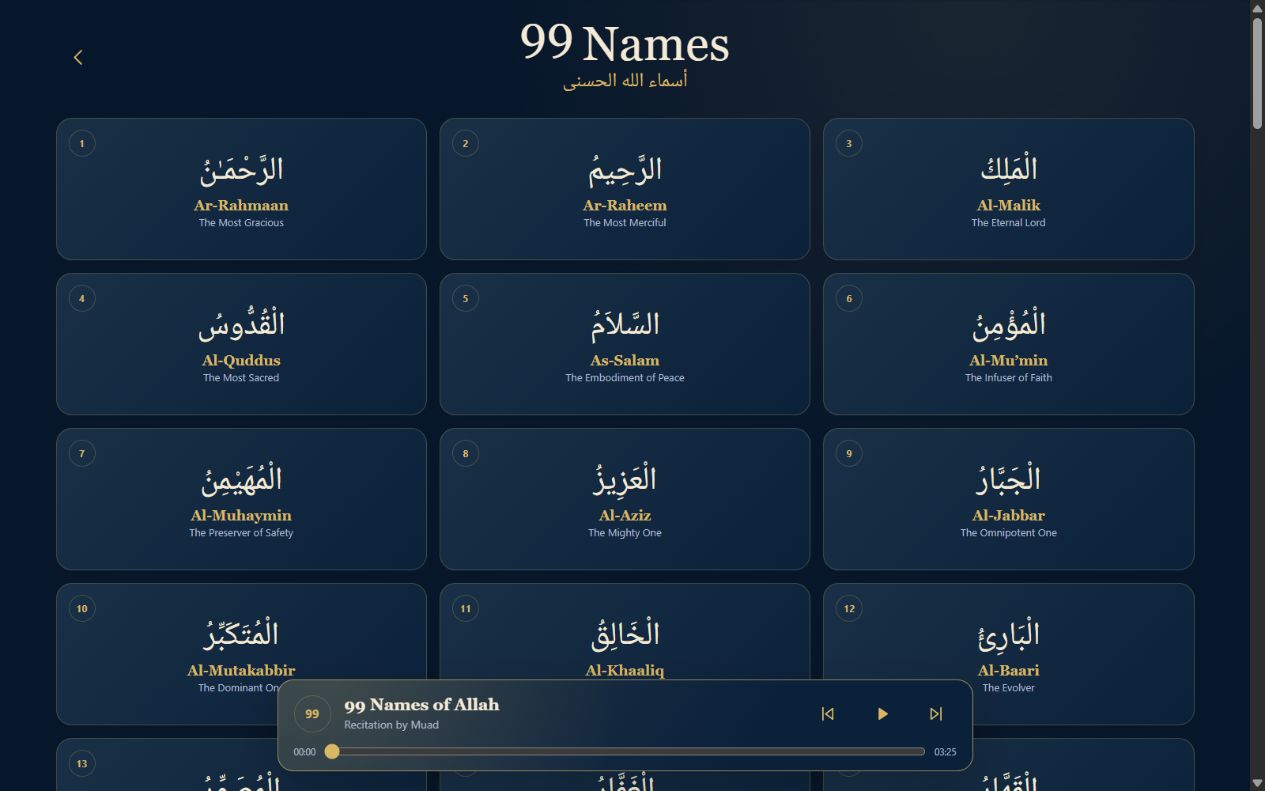
Select 99 Names in the Quran library filter row. The dedicated page presents each name in Arabic using the same Quran typeface, with its transliteration and a concise English meaning underneath.
The compact floating player contains one continuous recitation stored with the website, so it does not rely on a YouTube stream. Select Play or Pause to control the full sequence, use the previous and next controls to move by name, or drag the timeline to choose another point. While you move the timeline, the player shows the corresponding name without moving the page. Press Play when ready and the page smoothly returns to that name before continuing to follow the recitation. If you scroll manually, automatic following pauses briefly so it does not fight your movement.
Translation languages
Read the translation in your preferred language
Open the player options button at the bottom-right of the recitation card, then choose Translation language. The selected translation is shown below the Arabic ayah and is remembered on that device. You can turn translations off at any time without changing the chosen language.
The available choices are English, Urdu (اردو), Bengali (বাংলা), Hindi (हिन्दी), Gujarati (ગુજરાતી), Malayalam (മലയാളം), Tamil (தமிழ்), Telugu (తెలుగు), Persian (فارسی), Turkish (Türkçe), Indonesian (Bahasa Indonesia), Somali (Soomaali), and Pashto (پښتو). Urdu, Persian, and Pashto automatically display from right to left.
Small screens
Mobile use at a glance
The mobile layout keeps the essential controls within reach. The date arrows sit beside the date at the top of the page, and the full-width prayer cards make beginning and Jama'ah times easy to scan. Use the same Preferences button to change settings; the functions are the same as on desktop, but panels are arranged for a narrower screen.
| Task | On mobile |
|---|---|
| Change date | Tap the left or right arrow beside the date. |
| Choose a masjid | Tap Preferences, search, and select a result. |
| Use the compass | Open Preferences and allow permissions after selecting Start compass. |
| Add the site to the home screen | Use the browser menu on Android or the Share menu on iPhone. |
| Read Quran | Tap the Quran card, search or choose a surah, then use the player controls. |
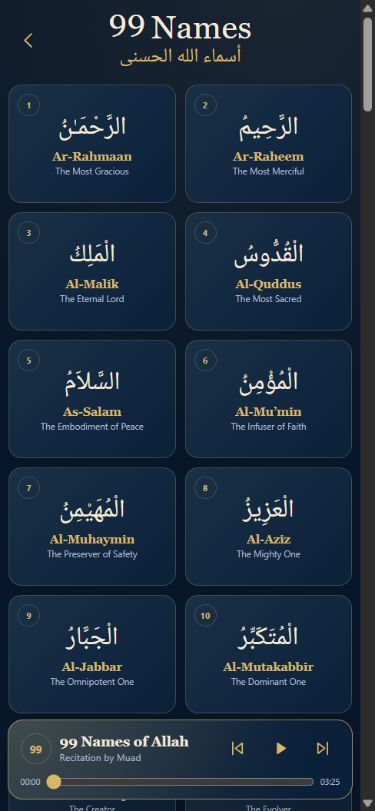
The Quran library becomes a compact two-column list of surah cards, with search and reciter selection at the top. The 99 Names page uses the same two-column arrangement and keeps its synchronised player floating above the safe area at the bottom of the screen.
If something is not working
Quick troubleshooting
No timetable after choosing Calculated Times
Return to Location & Calculation and confirm that a valid location has been saved. If location-based setup does not work, use the manual-coordinate option.
Published Jama'ah times look unfamiliar
Verify the selected masjid in Preferences; the active choice is shown below the search field.
Share does not open a system share sheet
Try pasting into a message or note. On desktop, Share copies the day's timetable to the clipboard.
Qiblah Compass stays on the permission screen
Use a phone with location and compass support, then verify the browser permissions for location and motion or orientation.
Quran audio does not start
Check the device volume and your network connection, then try Play again.
Safety and privacy reminders
Saved choices are stored on the device. Treat downloaded Qaza backups as private personal files. Grant location or compass permissions only when you want to use location-based calculated times or the Qiblah Compass, and review the browser's permission indicators if you later wish to revoke access.
Review scope
This guide reflects hands-on review of the interface on 16 September 2026. The live Qiblah direction itself was not verified in the desktop testing environment because it requires mobile device sensors. Time values and masjid availability can change according to the active date and selected source.
Keep this handy
Quick reference
| You want to... | Start here | Then... |
|---|---|---|
| View another day | Date arrows | Use the left and right arrows beside the date. |
| Choose a local masjid | Preferences | Search by masjid or town, then select a result. |
| Calculate times from your location | Timetable source or Preferences | Choose Calculated Times and save location and rules. |
| Change the visual theme | Preferences | Open the palette and select a theme. |
| Share today's times | Preferences | Select Share, then paste or use your device's share flow. |
| Find Qiblah | Preferences | Open Qiblah Compass and grant permissions. |
| Keep a Qaza record | Preferences | Turn on Qaza Salaah and use balances or manual entry. |
| Read or listen to Quran | Quran card | Search or select a surah and use the player. |
| Explore the 99 Names | Quran library | Select 99 Names, play the full Muad recitation, or use the timeline and press Play to continue from another point. |